How to use the eSIM Physical Card with GL.iNet routers?
This guide will show you how to use the eSIM physical card purchased from the GL.iNet online store with GL.iNet routers.
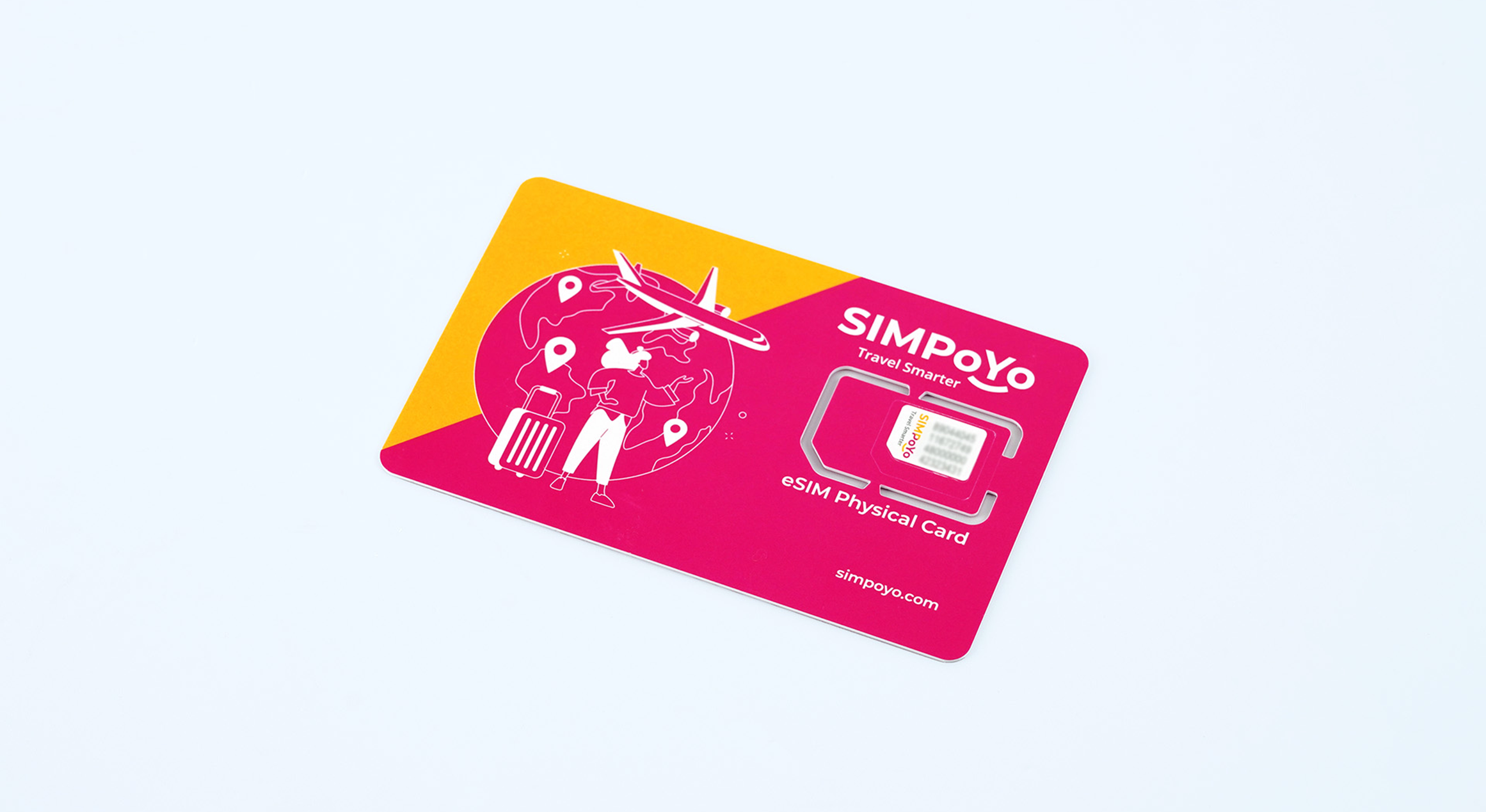
Features
The highlights of eSIM physical cards are as follows:
- Supports 4G and 5G networks for reliable and fast connections.
- Manage your eSIM profiles effortlessly by adding, removing, or enabling them.
- Select and purchase your preferred data packages from most eSIM stores worldwide at any time.
- Works with eSIM profiles from most global eSIM stores.
- Purchase eSIM profiles online without providing personal information, reducing the risk of privacy breaches.
- Comes with a seed profile that includes 1GB of free data for the U.S. and Europe, plus 100MB of Global Data, valid for 1 year from the activation date.
- Compatible with selected GL.iNet devices.
Supported Models
| Router Model | Support |
|---|---|
| GL-X2000 (Spitz Plus) | √ |
| GL-X3000 (Spitz AX) | √ |
| GL-XE3000 (Puli AX) | √ |
| GL-E750V2 (Mudi V2) | √ |
| GL-E750 (Mudi) | ※ |
| GL-XE300 (Puli) | ※ |
| GL-X750 (Spitz) | ※ |
| GL-X300B (Collie) | ※ |
| GL-E750V2 vSIM | X |
| GL-E5800 (Mudi 7) | X |
For models marked with ※:
-
The current stable firmware does not support eSIM. To use the eSIM function, you need to install the eSIM-supported firmware. Contact us for more instructions.
-
If you are using the ※ model with EP06-A module, eSIM is not supported because the Qualcomm software lacks specific AT command support.
-
If you are using the ※ model with EP06-E module, please refer to this link to upgrade the module's firmware and install the eSIM-supported firmware in order to enable eSIM functionality.
For models marked with X:
-
GL-E750V2 vSIM does not support eSIM functionality.
-
GL-E5800 (Mudi 7) comes with a built-in eSIM. Therefore, the eSIM physical card will be recognized as a regular SIM card without eSIM functionality on Mudi 7.
Set up eSIM Physical Card
If you're using the eSIM Physical card for the first time, please watch this setup video or follow these steps below to set it up on your GL.iNet Router.
Step 1: Insert the eSIM Physical card into your router. Refer to the images below for detailed guidance.


Step 2: Open a browser and type 192.168.8.1 in the address bar to log in to the GL.iNet Admin Panel.

Step 3: Connect your device to the Internet.
After login, go to INTERNET -> Cellular.
For dual-SIM routers, make sure the physical eSIM card slot is set as the Active SIM Card. If not, click SIM Card Switch and select the SIM slot where the physical eSIM card is installed.
Then click Connect (or Auto Setup in lower firmware version) to connect it to the internet via Cellular network.
This eSIM physical card comes with a seed profile that includes 1GB of free data for the U.S. and Europe, plus 100MB of Global Data, valid for 1 year from the activation date. Please note that this data is only for purchasing and downloading eSIM profiles and is not intended for general internet access.

Once connected successfully, the screen will appear as follows.

Manage Your eSIM Profile
Step 1: Ensure your GL.iNet device has the latest firmware installed.
Please make sure the Version is 4.0 or higher, and the Firmware Type number is 0319 or greater.

If your firmware is not up-to-date, you can upgrade it either automatically online or manually.
Option 1: Online Firmware Upgrade
-
Ensure your device is connected to the internet.
-
In the web admin panel, navigate to SYSTEM -> Upgrade -> Online Upgrade, and click the Install button to automatically update to the latest firmware.

Option 2: Manual Firmware Update
-
Download firmware for the corresponding model that supports eSIM functionality from here.
-
In the web admin panel, navigate to SYSTEM -> Upgrade -> Local Upgrade. Select the firmware file or drag it into the designated area to upgrade to the latest version.

Note
-
Some models, such as Mudi (GL-E750), Puli (GL-XE300) and Spitz (GL-X750), do not support eSIM if they are equipped with Quectel EP06-A modules due to the Qualcomm software lacking support for specific AT commands.
-
If they have EP06-E modules installed, please refer to this link to upgrade the module to the latest software for eSIM functionality.
Step 2: Navigate to the eSIM Management.
After updating the firmware, wait for your device to reboot, then log in to the GL.iNet Admin Panel.
Navigate to APPLICATIONS -> eSIM Management. Here you can view your eSIM status and manage eSIM profiles.

Only one eSIM profile can be active at a time. A green dot indicates that the selected eSIM profile is currently active.
Related Article:
Still have questions? Visit our Community Forum or Contact us.